Updating Club Address Information
A Club can have several addresses for different purposes. To add, or update your Club's address information follow this guide:
1.Navigate to https://rezults.scopos.tech and log into the Scopos account of your Club Admin, or Manager.
2.On the left, click My Clubs to expand the Clubs you have access to, and click on the Club you wish to edit the address information for.
a.If you are on a mobile device, instead click the menu (≡) button at the top right of the page to reveal the My Clubs section.
3.Locate and click on the Contact Options tab above your club information
On this page we can edit existing addresses, delete addresses, or add new addresses.
Update Existing Addresses:
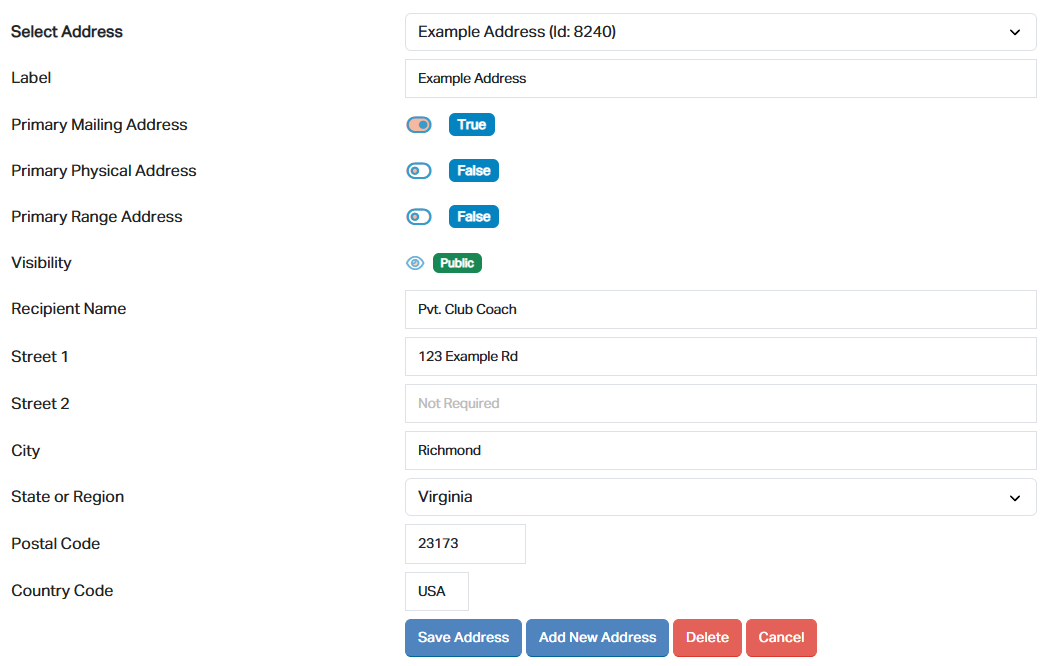
To update an existing address, click on the drop down menu next to the Select Address label and select the address you wish the update.
The fields below that drop down will populate with the address and associated information. Be sure your label makes sense for this address. (Ex. "Billing" if this would be your billing address, or "Primary" for your primary address)
Ensure that the relevant primary toggles are set. You can only have one of each primary, but an address can be multiple primaries.
For example: You can have one address set as your Primary Range address, and a second address set as both your Primary Mailing Address and Primary Physical Address.
When you have supplied the latest information, click the Save Address button to save your address.
Add New Addresses
To add a new address, scroll to the bottom of the address information listed, and click the Add New Address button.
Fill out the address information, be sure to select which Primary(s) this address should be designated as.
Note: To prevent an address from being visible on your Club page to the general public, click the "👁" icon to toggle it to a Protected view. Protected items are only visible to Club members.
After filling out all of your information, click the Save Address button to save the address to your Club